
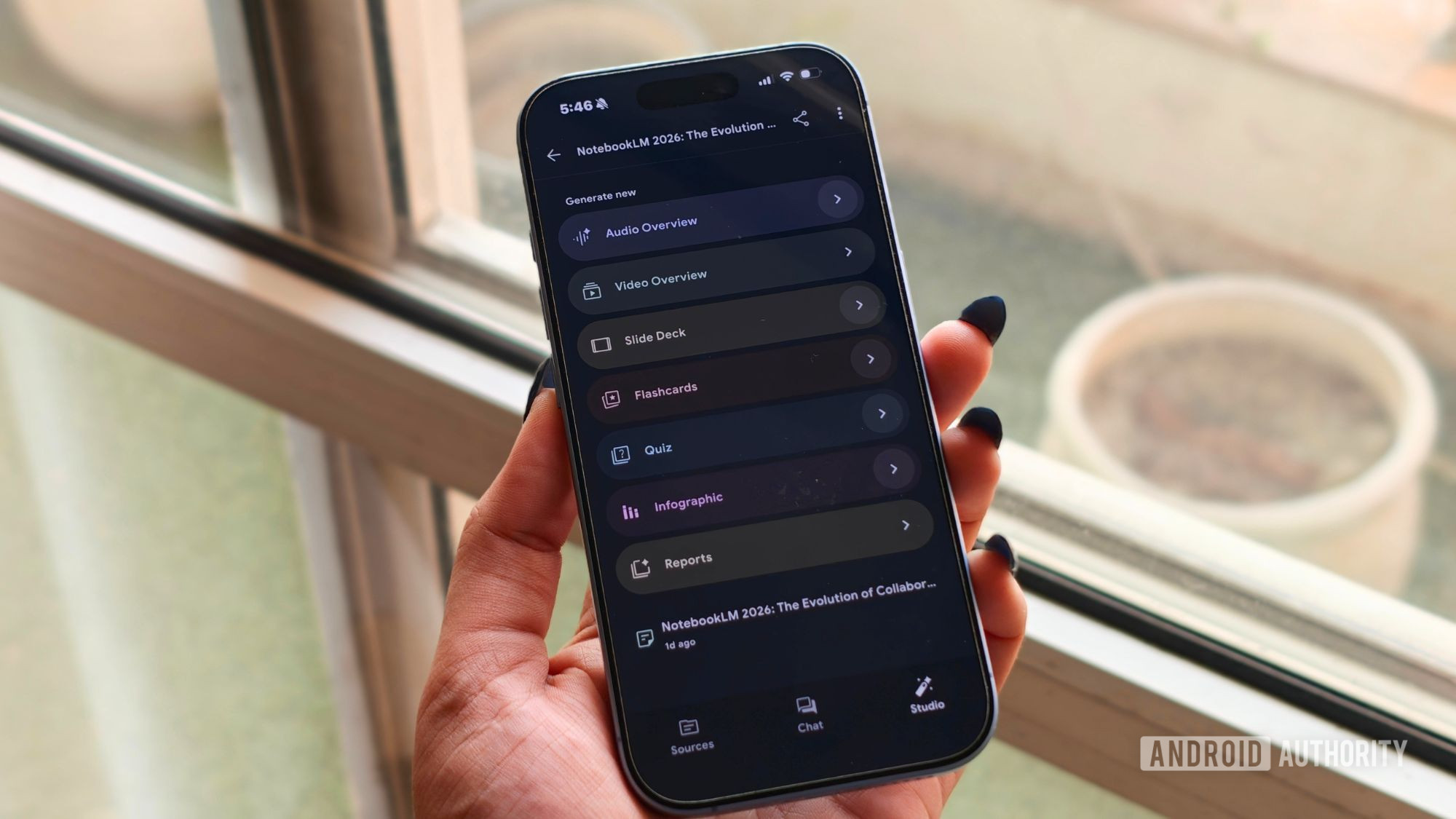
Shimul Sood / Android Authority
Open Notebook is virtually a clone of NotebookLLM’s core functionality, including stand-out features like audio summaries, the ability to ask questions about your research sources, and so much more. Of course, nothing is perfect, and it isn’t without catches. Below, I’ll dive into what I love about Open Notebook, what is less ideal about it, and how to give it a try for yourself.
Would you consider Open Notebook over NotebookLM?
85 votes
Yes, I’m certainly interested in trying it out.
75%
I’m already using it and highly recommend it.
9%
No, this looks too complicated.
13%
I’ve already tried it and wasn’t a fan.
2%
Here’s where Open Notebook shines
The core features are pretty much the same as NotebookLLM. You upload sources from PDFs to YouTube videos and everything in between, and then it synthesizes this information into audio, quizzes, or you can just chat with it.
Let’s start with what really sets Open Notebook apart from NotebookLLM: it’s an open-source project you must configure yourself. This comes with some downsides, which we’ll get into a bit later. It also means that your data is truly secure in a way that NotebookLLM isn’t. You even have greater flexibility and customization options than what Google offers.
You can run Open Notebook locally using a model like Ollama, or connect it to your favorite cloud-based AI models, including GPT, Gemini Pro, Opus, and more. It’s also easy enough to switch between models, so you don’t necessarily have to lock down just one choice here either.
Even better, there are no limits to how many notebooks you create, as well as how many sources you utilize. Meanwhile, the free version of NotebookLM limits you to 100 notebooks with no more than 50 sources each. That said, using Open Notebook will still burn up token limits if you’re using a cloud-based model, and so that’s worth keeping in mind.
What’s not so great
As much as I like Open Notebook, it’s important to be upfront about its downsides.
First, this is not a plug-and-play experience by any stretch of the imagination. While I’m a pretty experienced computer geek with decades of experience, installing Open Notebook manually on a Chromebook was a massive pain, to say the least. It took me two tries and several hours to set it up this way. It was much easier on Windows thanks to the Docker Desktop application, setting up in a half hour or so, but it still required a bit of DIY knowledge and troubleshooting to get it all right.
Let’s also talk about its audio summary podcasts. While I appreciate that you can actually have up to four speaking voices instead of just the two-voice option with NotebookLLM, the audio breakdowns are much shorter by default. Instead of the 8-15 minute cap you’ll get with NotebookLM, audio breakdowns are usually closer to just a few minutes.
You can customize this and increase the length to 30 minutes or more, but even then, I found the podcast’s quality just wasn’t as sharp. I used a few different models, and even then, I felt NotebookLM had slightly stronger breakdowns.
You’ll also need to have the service running via a core PC or your own cloud setup before you can use it on other devices like Android. Even then, you’ll have to use a web browser as there is no native app.
How to try Open Notebook for yourself
Like I said before, installing Open Notebook can be a bit tricky, but the easiest way is to install Docker Desktop, which lets you run containerized applications directly without needing to use the command-line interface as much.
Once the program is running, you’ll want to obtain the API key from your chosen provider. The exact process for this will vary.
While there is an official starting guide for this process, it’s important to note that it’s actually out of date in several areas. For those planning to install a cloud model, the steps below walk you through the basic initial setup.
Start by creating a configuration file. You’ll want to open up something like Notepad and paste the following:
services:
surrealdb:
image: surrealdb/surrealdb:v2
command: start –user root –pass password –bind 0.0.0.0:8000 rocksdb:/mydata/mydatabase.db
ports:
– “8000:8000”
volumes:
– ./surreal_data:/mydata
# Removed the healthcheck because the v2 image is too minimal to run wget/curl
restart: always
open_notebook:
image: lfnovo/open_notebook:v1-latest
pull_policy: always
ports:
– “8502:8502” # Web UI
– “5055:5055” # API
environment:
– OPEN_NOTEBOOK_ENCRYPTION_KEY=change-me-to-a-secret-string
– SURREAL_URL=ws://surrealdb:8000/rpc
– SURREAL_USER=root
– SURREAL_PASSWORD=password
– SURREAL_NAMESPACE=open_notebook
– SURREAL_DATABASE=open_notebook
volumes:
– ./notebook_data:/app/data
depends_on:
– surrealdb
restart: always
After creating the file, you’ll want to edit change-me-to-a-secret-string and replace it with a phrase of your choice. You’ll then save the file as docker-compose.yml under a new folder called Open Notebook.
Next, you’ll want to run Docker Desktop. After it’s up, open File Explorer and navigate to the Open Notebook folder where you put the configuration file. Right-click anywhere in the window and pick Open in terminal.
The Terminal window will open, and you’ll want to enter: docker compose up -d
After about 15 seconds, the services will start, and you’ll be able to access Open Notebook in your browser by typing in http://localhost:8502 into the address bar. The Open Notebook UI should open, but you’re not done yet.
You’ll want to go to Manage > Models, find your preferred AI company in the list, and click the Add Configuration button. A new box will pop up asking you to enter a name for your configuration and the API Key. After you add both, click the Add Configuration button.
You’ll notice a Test button next to your new configuration at this time. Click this button to test the connection. You’ll also need to specify what model you wish to use for chat, embedding, and transformations. The last of these options refers to the process used to create reflections, table of contents, audio summaries, and more.
Once this is all completed, you should be in business. You can then go to the New tab and create a new Notebook. From there, it’s just a matter of adding sources and testing out all of its Transformation capabilities. That said, you’ll still need to configure your Podcasts settings and a few other things. For brevity, I won’t go into all these details, but you can find more in the Open Notebook start guide.
Is Open Notebook actually a better choice?
So, is Open Notebook better than NotebookLM? Honestly, the answer depends on your needs and how much you’re willing to play with settings to customize it to your liking. Open Notebook could certainly be worth the effort for those who love the idea of NotebookLM but don’t like their data sitting on a Google server. The same goes for those who like the tool but prefer a model that isn’t based around Gemini technology.
For everyone else, NotebookLM remains a slightly better performer that’s easy to get started with and can be made even better with a NotebookLM Pro or Plus upgrade. But if you don’t mind some tinkering, Open Notebook is absolutely worth a shot.
Thank you for being part of our community. Read our Comment Policy before posting.
